

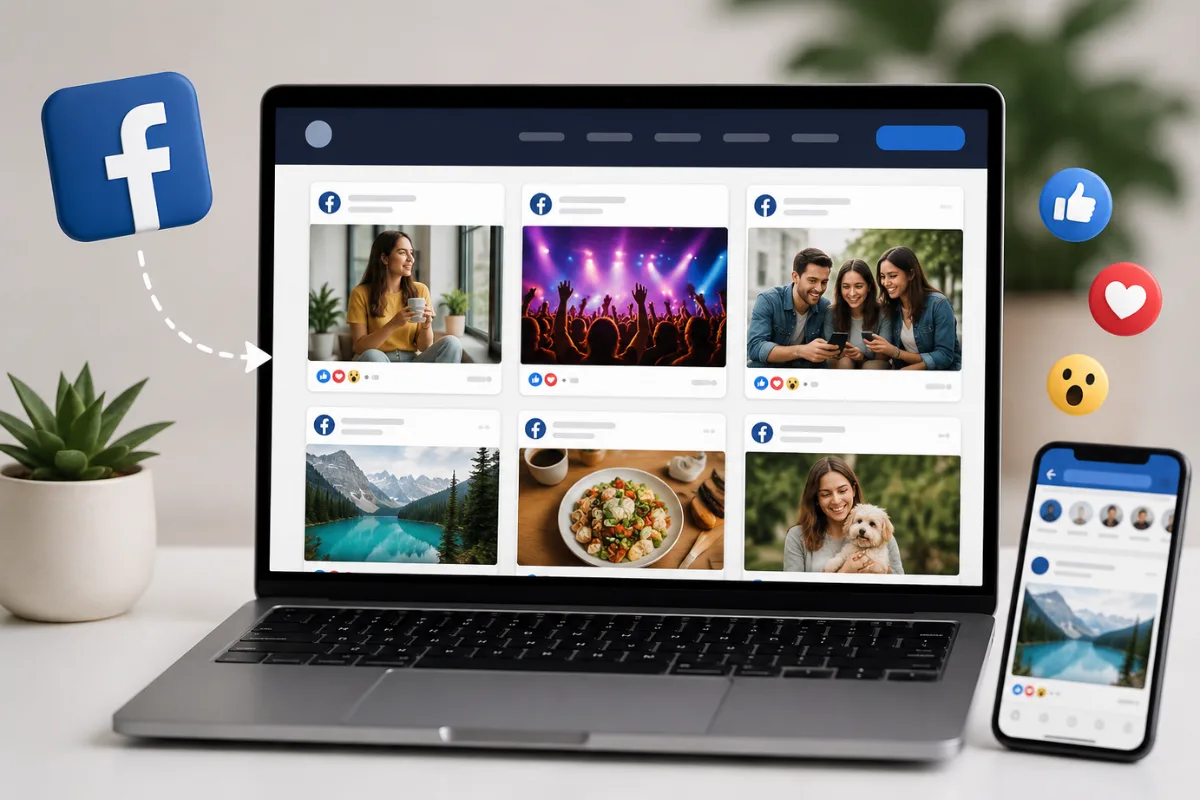
How to Embed a Facebook Feed on Your Website | Boost Engagement
- Rohit Kumawat
- Social Media
- 2026-08-12 13:02:41
- 2776K
Your website should not be a static destination that visitors browse once and leave. To keep people interested, you need fresh, relevant content that gives them a reason to explore, interact and return.
One simple way to do this is to embed a Facebook feed on your website.
A Facebook feed widget lets you display your latest Facebook posts, photos, videos, and other social content directly on your website. Instead of asking visitors to leave your site and visit your Facebook page, you bring that content to them.
This can make your website more dynamic, encourage social interaction, build trust, and potentially increase conversions.
What Does It Mean to Embed a Facebook Feed on Your Website?
To embed a Facebook feed on website means displaying Facebook content directly on one or more pages of your website.
Depending on the tool you use, the feed can show:
- Facebook posts
- Photos and videos
- Text updates
- Customer-generated content
- Promotional posts
- Product announcements
- Events and updates
- Content from a Facebook Page
The content is usually displayed through a Facebook feed widget that automatically fetches and displays selected social media content.
For example, a restaurant could display its latest Facebook posts on its homepage. An e-commerce brand could showcase customer interactions and product-related posts. A college could display announcements and event updates.
The biggest advantage is that visitors can see your social activity without leaving your website.
Why Should You Add a Facebook Feed to Your Website?
Adding Facebook content to your website is not simply about making your page look more social. When used strategically, a Facebook feed can support engagement, trust, and conversions.
1. Keep Your Website Content Fresh
Websites can quickly become outdated if the same content remains on the page for months.
A Facebook feed can provide a constantly changing content source. Whenever you publish a new post on Facebook, the feed can automatically update on your website. This means you don't necessarily need to manually edit your website every time you publish a social media update.
2. Increase Website Engagement
Visitors are more likely to interact with pages that contain interesting and regularly updated content.
A Facebook feed can encourage visitors to:
- Scroll through recent posts
- Watch social videos
- Read updates
- Discover your Facebook page
- Interact with social content
- Spend more time exploring your website
This creates additional opportunities to engage visitors beyond your standard website copy.
3. Build Social Proof
People often want to know if a business is active and trusted before making a purchase or contacting it. Displaying authentic Facebook content can help provide that context.
Customer comments, community interactions, product updates, event photos and other social posts can make your brand feel more established and active.
This is particularly useful for businesses where trust plays an important role in purchasing decisions.
4. Connect Your Website and Social Media
Your website and social media channels don't have to operate independently. Embedding Facebook content creates a connection between the two.
Your website can become a central place where visitors discover your social activity, while your Facebook presence can drive additional traffic and engagement. This creates a stronger social media integration for websites.
5. Encourage Facebook Followers
Some website visitors may not know that your business has an active Facebook presence. Showing your Facebook content directly on your website gives them a reason to discover your page.
You can also place a Facebook follow or page CTA near the feed to encourage interested visitors to connect with you on social media.
How to Embed a Facebook Feed on Your Website
There are several ways to add Facebook content to a website. The exact process depends on your website platform and the type of content you want to display. For most businesses, using a dedicated social media widget is one of the simplest options.
Here is a general process.
Step 1: Choose the Facebook Content You Want to Display
First, decide what type of content you want visitors to see.
For example, you might want to display:
- Recent Facebook posts
- Photos
- Videos
- Brand announcements
- Customer posts
- Event updates
Choosing the right content is important because the feed should support the webpage's purpose.
A homepage might benefit from recent brand updates, while a product page could benefit from customer-related content.
Step 2: Choose a Facebook Feed Widget
A Facebook feed widget connects your social media content with your website.
Look for a tool that provides features such as:
- Easy Facebook integration
- Multiple layout options
- Responsive design
- Custom styling
- Content moderation
- Automatic updates
- Mobile-friendly display
- Lightweight loading
- No-code or low-code installation
Tools such as Tagembed provide social media embedding features that allow businesses to collect Facebook content, customise the feed and display it on their websites without building the entire integration from scratch.
Step 3: Connect Your Facebook Page
Once you select a Facebook feed tool, connect the Facebook Page or source from which you want to collect content.
Depending on the platform and tool, you may need to authenticate your account or provide the required permissions.
After connecting the source, the tool can begin collecting eligible Facebook content for your website feed.
Step 4: Customise the Facebook Feed
Don't simply place the default widget on your website and forget about it. Customize the appearance so that it matches your website.
Common customization options include:
- Grid layout
- Carousel layout
- Masonry layout
- Number of posts
- Font styles
- Spacing
- Background
- Buttons
- Post design
- Feed dimensions
Your goal should be to make the Facebook widget feel like a natural part of your website.
Step 5: Moderate Your Content
Not every social post necessarily belongs on your website. If your feed contains content from customers or multiple sources, moderation can help you control what appears.
For example, you may want to remove:
- Irrelevant posts
- Duplicate content
- Promotional spam
- Outdated content
- Posts that don't match your brand
Content moderation helps maintain a professional website experience.
Step 6: Generate and Add the Embed Code
After customizing your feed, generate the widget's embed code. Most website widget tools provide a simple code snippet that you can paste into your website. The process differs slightly depending on your website builder.
For example, you can generally add the widget through an HTML or custom-code section in platforms such as WordPress, Wix, Shopify, Squarespace, or other website builders.
Once the code is added, publish or update the page and check the feed on both desktop and mobile devices.
How to Embed a Facebook Feed on WordPress
WordPress users have several options for displaying Facebook content.
A typical process is:
- Choose a Facebook feed widget.
- Connect your Facebook Page.
- Customize the feed.
- Copy the generated embed code.
- Open the WordPress page or post.
- Add a Custom HTML block.
- Paste the code.
- Preview the page.
- Publish or update it.
If you're using a page builder, you may also have a dedicated HTML or custom-code element.
How to Embed a Facebook Feed on Shopify
For Shopify stores, a Facebook feed can be useful on the homepage, about page, or other content-focused sections.
The general process is:
- Create your Facebook feed widget.
- Customize its design.
- Copy the generated code.
- Open the relevant Shopify theme section.
- Add a Custom Liquid or HTML-compatible section.
- Paste the code.
- Save the changes.
- Preview your store.
Keep the feed visually consistent with your e-commerce design so it doesn't distract shoppers from important product and checkout elements.
How to Embed a Facebook Feed on Wix
Wix also allows website owners to add external content using embedded HTML elements.
After creating your Facebook feed:
- Copy the widget's embed code.
- Open your Wix editor.
- Add an Embed Code element.
- Insert the Facebook feed code.
- Resize the widget if necessary.
- Preview your page.
- Publish the changes.
Always check how the feed behaves on mobile before considering the implementation complete.
Best Practices for a Facebook Feed Widget
Simply embedding Facebook content doesn't automatically increase engagement. How you display the feed matters.
Place the Feed Where It Adds Value
Avoid placing the feed randomly on pages.
Good locations include:
- Homepage
- About page
- Community page
- Events page
- Blog sidebar
- Contact page
- Product pages where social proof is relevant
Choose a location where social content supports the visitor's journey and gives them confidence about CTA.
Keep the Design Consistent
Your Facebook widget should look like part of your website, not an unrelated third-party element. Use colors, spacing, fonts and layouts that complement your existing design.
Make It Mobile-Friendly
A large percentage of website visitors browse from smartphones. Your Facebook feed widget should automatically adapt to different screen sizes.
Test the feed on:
- Smartphones
- Tablets
- Laptops
- Desktop monitors
A feed that looks good on desktop but breaks on mobile can create a poor user experience.
Don't Overload the Page
More content isn't always better. Displaying dozens of Facebook posts can make the page unnecessarily long and distracting. Start with a manageable number of posts and monitor how visitors interact with the feed.
Use a Clear CTA
If your goal is to grow your Facebook community, consider adding a relevant call to action.
For example:
Follow us on Facebook for more updates.
The CTA should support the page's main goal and not compete with it.
Can a Facebook Feed Improve Website Engagement?
Yes, but the results depend on how the feed is implemented.
A Facebook feed can boost engagement by adding fresh content, social proof, visual variety and additional opportunities for interaction.
For example, an e-commerce website should still prioritise product information, pricing, reviews and clear calls to action. The Facebook feed can then provide additional social context.
Similarly, a service business can use Facebook posts to demonstrate activity, events, customer interactions, or company updates while keeping its primary service information easy to find.
How to Measure the Impact of Your Facebook Feed
After adding a Facebook feed to your website, track whether it is actually helping.
Useful metrics include:
Time on Page
Compare the average time spent on pages before and after adding the feed.
Engagement Rate
Look at interactions such as clicks, scrolls, and other engagement signals available through your analytics setup.
Click-Through Rate
If your widget includes buttons or links, measure how many visitors click them.
Conversion Rate
For business websites, the most important metric may be whether the feed contributes to actions such as:
- Form submissions
- Product purchases
- Sign-ups
- Demo requests
- Contact requests
Social Growth
If you're using the widget to promote your Facebook presence, monitor changes in page visits and follower growth.
Common Mistakes to Avoid While Embedding Facebook Feed on Website
Some mistakes that we ignore can have a big impact on your website. Try avoiding such mistakes. Making some basic mistakes can affect the website's presence and overall experience.
Embedding Too Many Posts
A huge feed can overwhelm visitors and push important website content too far down the page.
Ignoring Mobile Users
Always test your Facebook feed across different screen sizes.
Using an Unrelated Design
A widget that doesn't match your website can look distracting or unprofessional.
Showing Irrelevant Content
Only display content that makes sense for your audience and webpage.
Forgetting Page Speed
Third-party widgets can affect loading performance if they're poorly implemented. Choose a solution designed to load efficiently and consider lazy loading where appropriate.
Conclusion
Learning how to embed a Facebook feed on your website is a relatively simple way to connect your social media presence with your website.
A well-designed Facebook feed can help keep your website content fresh, showcase social proof, encourage visitors to explore your social channels, and create additional engagement opportunities.
The key is to use the feed strategically. Choose relevant content, customize the design, moderate posts when necessary, make the widget responsive, and measure its impact.
If you want a straightforward way to collect and display Facebook content, a social media aggregation tool such as Tagembed can simplify the process with customization, moderation, responsive layouts, and website embedding options.
Ultimately, the best Facebook feed is one that feels like a natural part of your website and gives visitors useful reasons to stop, scroll, interact, and continue exploring your brand.
Frequently Asked Questions
1. How do I embed a Facebook feed on my website?
To embed a Facebook feed on your website, choose a Facebook feed widget, connect your Facebook Page, customise the feed layout and appearance and copy the generated embed code into your website. Most modern website builders support adding the code through an HTML or custom-code section.
2. Does embedding a Facebook feed increase website engagement?
A Facebook feed can help increase engagement by adding fresh and new content, social proof, visuals and additional opportunities for interaction. However, its effectiveness depends on factors such as content quality, placement, design, and the overall website experience.
3. Can I customise a Facebook feed before embedding it?
Yes, many Facebook feed tools allow you to customize the widget's layout, colors, spacing, fonts, number of posts, and other design elements. Customization helps make the Facebook feed match your website's branding.
4. Is a Facebook feed responsive on mobile devices?
A responsive Facebook feed automatically adjusts to different screen sizes, including smartphones and tablets. When choosing a Facebook feed widget, make sure it supports responsive design and test the feed on multiple devices before publishing.
5. Can I moderate Facebook content before displaying it on my website?
Yes, some Facebook feed solutions provide moderation features that let you control which posts appear on your website. This can help remove irrelevant, outdated, duplicate or inappropriate content from the feed.
6. Does a Facebook feed slow down a website?
When not optimised properly, it can affect website performance. To minimise the impact, choose a lightweight solution, avoid displaying too many posts, optimise media where possible and use performance-friendly features such as caching or lazy loading when available.
7. Can I embed multiple Facebook feeds on one website?
Yes, depending on the widget or embedding solution you use, you can display different Facebook feeds on different pages or sections of your website. For example, you could show a brand feed on the homepage and a separate community or event feed on another page.
2776 people like this



About Premium Author
This post has been authored and published by one of our premium contributors, who are experts in their fields. They bring high-quality, well-researched content that adds significant value to our platform.
Leave a Reply
Please login to post a comment.








0 Comments